Getting Started with Spectranext
Assuming you have obtained Spectranext cartridge, you can follow this tutorial to get started.
Hardware Requirements
You need the following to get started:
- ZX Spectrum (48K, 128K, +2, +2A, +3, or compatible) – see warning below.
- Spectranext cartridge (inserted into expansion port)
- USB-C cable for advanced communication with console interface (optional)
- WiFi network for internet connectivity
Switch the +3/48k switch in correct position
+2/+3 machines are not physically compatible on the Edge port of ZX Spectrum.spectranext
Make sure you set the special switch Spectranext has into correct position:
<+3for +2/+3 devices48k>for 48k/128k devices
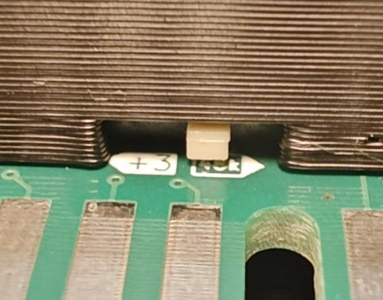
Failure to set the switch correctly has potential to strain VIDEO pin on 48k, with potential breakage.
Install the cartridge
Doing so may permanently damage both devices.
Install the cartridge into your system, while it is being powered off. If you have an additional device you might have been used before (e.g. ZX-HD), remove the pass-though cover and connect the device(s) in a daisy chain.
Provide power
Spectranext is ready to use on first boot.
On first boot, Spectranext will search or available Wi-Fi access points to connect to. Once search is complete, select the access point using Q/A keys and select Enter to provide Wi-Fi password.
Spectranext is unable to find 5G Wi-Fi networks at the curret revision.
Once correct password is provided, the system will be rebooted and you will be prompted to the launcher menu.
Launcher Menu

What's next?
Spectranext (and original Spectranet) takes care to be out of the way: after initialization it gives you back to whatever environment you have, except for the fact it forces you into 48k mode. You can Disable Spectranext in software, so you can go 100% stock in case you have such need.
Moreover, the launcher menu can be disabled by going into "Filesystem Mounts" and disabling "autoboot" of the local XFS filesystem. This is because the launcher internally is a resource, just hosted on the cartridge.
Press the "Magic Button"
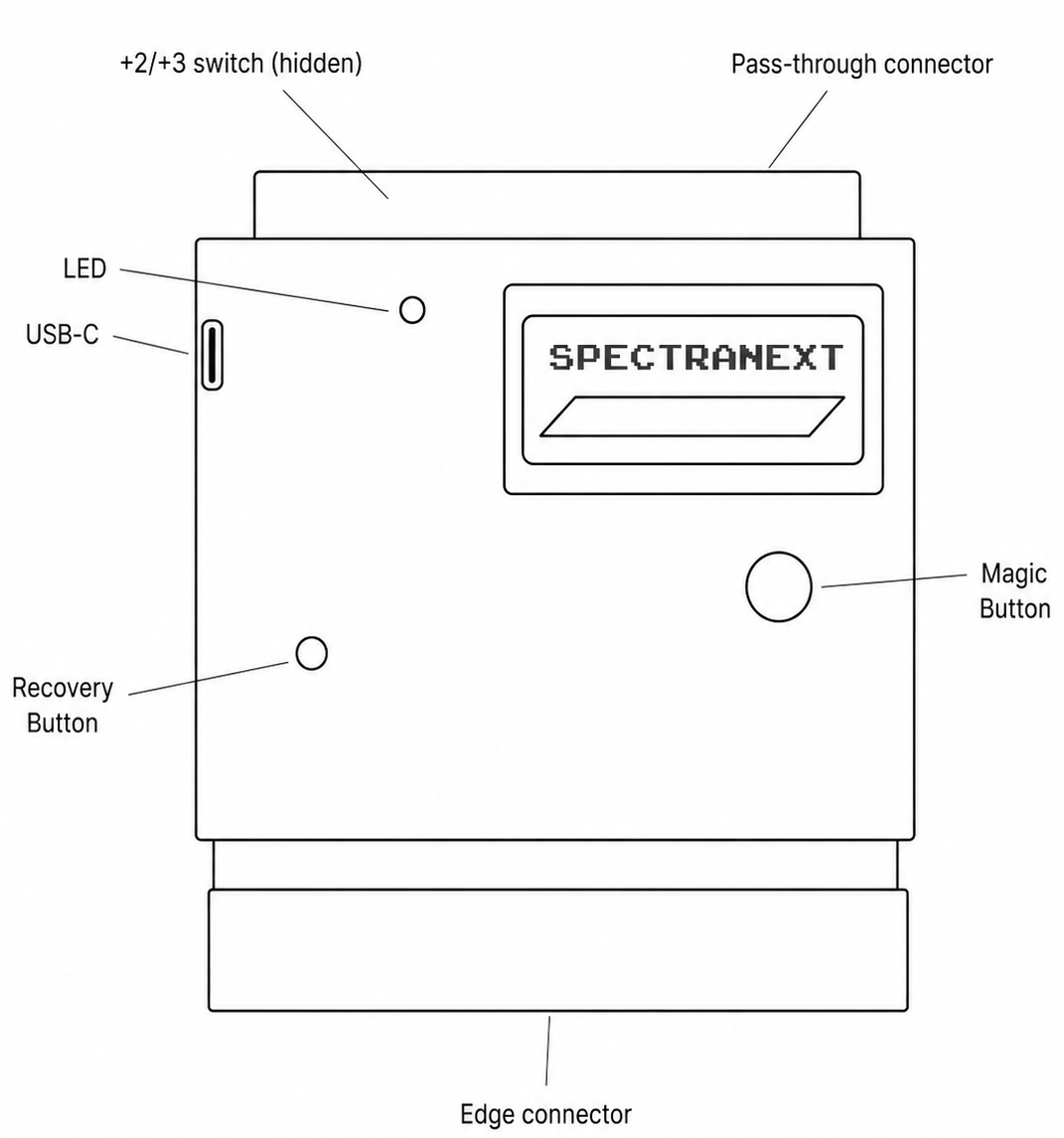
See Interface for what interface buttons, etc., the cartridge has.
Navigate the Spectranet Index
Select Resource Index on the Launcher, or type in the following on the Basic:
!
Doing so will open a list of Spectranet and Spectranext resources you can visit, hosted by developers.

Please contant us
Load up Hacker News demo
Select "Load Resource URL" and input https://spectranext.net/demo/hn (https is important),
or type in the following on the Basic:
%mount "https://spectranext.net/demo/hn"
%load ""
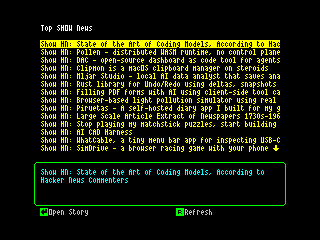
Which would allow you to navigate Hacker News with your ZX Spectrum.
Loading a test program
This example will load a small demo program that makes an HTTPS request into CloudFlare:
%mount "https://spectranext.net/test/web/"
%load ""
%mount "<url>" is a Spectranext-only BASIC shortcut. It mounts the URL into a free slot and switches %fs to that slot automatically, so the %load "" above works without an extra %fs command.
This shorthand is not available on the original Spectranet. If you want BASIC compatibility with Spectranet in your program you share with others, use the full form %mount <slot>, "<url>" + %fs <slot>.
For program-loading HTTPS trees, slot 1 is still the usual manual choice.
For general business or app file access (TNFS, HTTP(s) data, etc.), prefer mount point 3 when using the full explicit form. See Filesystem overview: mount points.
What to do next?
You can become a developer for Spectranext and make something with it:
- Install and verify the SDK so you can build Spectranext-targeted programs.
- Read Memory to understand paging, page-in/page-out behaviour, and when to use paged vs no-page libraries.
- Learn the Socket APIs if your program will open TCP or UDP connections.
- Continue with TLS/HTTPS sockets if you need to access encrypted HTTPS or TLS traffic.
- Set up Syncing with Computer so you can copy files to the onboard XFS filesystem quickly during iteration, and commit files to flash when they should persist.
- Use Debugging Spectrum once you want breakpoints, stepping, and GDB-based inspection.
Programming for Spectranext
- Check the SDK documentation for programming details.